Google Sheets Integration
Pull real-time price data into Google Sheets with custom functions. Look up products, compare prices, and build automated reports without leaving your spreadsheet.
How to get started
Install the add-on
Open Google Sheets, go to Extensions, and search for ShoppingScraper in the add-on marketplace. Install with one click.
Enter your API key
Open the ShoppingScraper add-on sidebar and enter your API key. The key is saved securely in your Google account.
Use custom functions
Type ShoppingScraper functions directly into cells, such as =SS_OFFERS(EAN) or =SS_INFO(EAN). Data populates automatically.
Build reports
Combine custom functions with standard spreadsheet formulas to create automated pricing reports and dashboards.
What you get
- Custom spreadsheet functions for all API endpoints
- =SS_OFFERS(EAN) for current merchant offers
- =SS_INFO(EAN) for product metadata
- =SS_SEARCH(keyword) for product search
- =SS_GLOBAL(EAN, country) for geo pricing
- Automatic data refresh on sheet reload
- Works with standard Google Sheets formulas
- Secure API key storage in Google account
- No coding required
- Free to install with any ShoppingScraper plan
Price data meets spreadsheets
The Google Sheets integration brings ShoppingScraper data directly into your spreadsheets. Use custom functions like =SS_OFFERS(EAN) to pull current merchant offers, =SS_INFO(EAN) for product metadata, and =SS_GLOBAL(EAN, 'NL') for country-specific pricing. Combine these with standard spreadsheet formulas to build powerful pricing reports and dashboards without writing code.
- Custom functions for offers, info, search, and global pricing
- Combine with VLOOKUP, SUMIF, and other sheet formulas
- Build automated pricing dashboards
- Share reports with colleagues via Google Sheets sharing
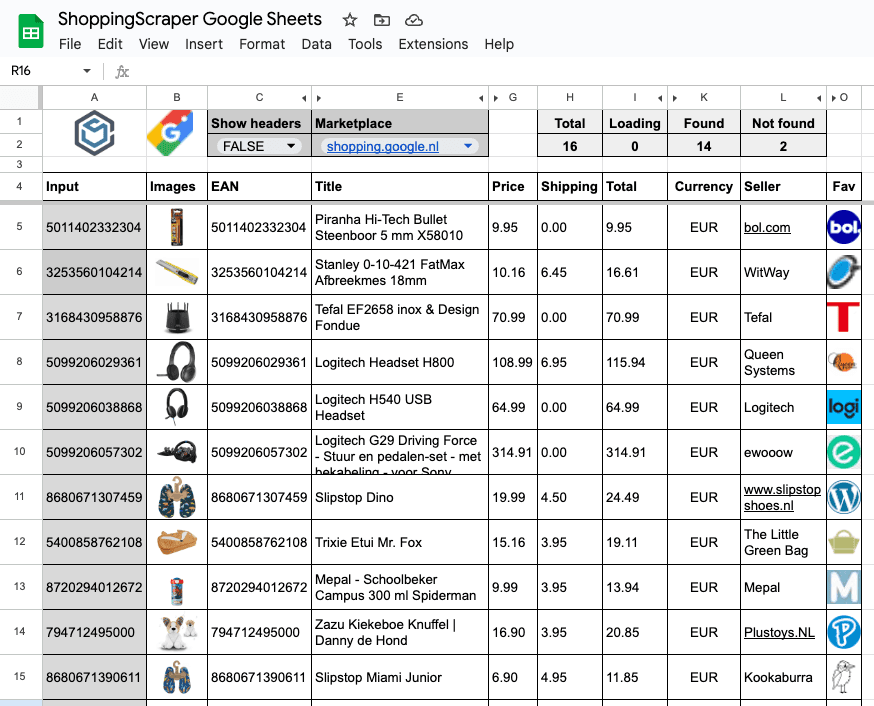
Real-time price data directly in Google Sheets
Perfect for non-technical teams
Not everyone on your team is comfortable with APIs and code. The Google Sheets integration puts price intelligence into the tool business teams already use every day. Category managers, pricing analysts, and marketing teams can query ShoppingScraper data, build competitor analysis reports, and track pricing trends, all within familiar spreadsheets.
- No programming knowledge required
- Familiar spreadsheet interface
- Ideal for category managers and pricing analysts
- Easy sharing and collaboration via Google Sheets
Frequently Asked Questions
How do I install the add-on?+
Open Google Sheets, go to Extensions > Add-ons > Get add-ons, and search for ShoppingScraper. Click Install and authorize the add-on.
Which functions are available?+
Key functions include =SS_OFFERS(EAN), =SS_INFO(EAN), =SS_SEARCH(keyword), and =SS_GLOBAL(EAN, country). Each maps to a ShoppingScraper API endpoint.
Does it refresh automatically?+
Data refreshes when you reload the spreadsheet or manually recalculate. Google Sheets also periodically recalculates custom functions.
Is my API key secure?+
Yes. Your API key is stored securely in your Google account via the add-on's properties service. It is not visible in the spreadsheet.
Does it consume API credits?+
Yes. Each custom function call that fetches data consumes credits from your ShoppingScraper plan, similar to direct API requests.
Can I use it with Google Sheets templates?+
Yes. You can create template spreadsheets with ShoppingScraper functions and share them with your team. Each user needs their own API key.