Advanced filters for price data APIs
Master advanced filtering techniques for price data APIs including single-field filters, range filters, logical operators, sorting, and pagination to extract exactly the competitive data you need.
Advanced filters in price data APIs allow you to refine search results with precision, saving time and improving data relevance. Instead of sifting through irrelevant results, you can define exact criteria like price ranges, product condition, availability, or seller type. For example, setting a price filter of $10–$100 ensures no items outside that range appear. This level of control reduces post-processing, saves bandwidth, and delivers sharper insights.
With platforms like ShoppingScraper, you can combine multiple filters in a single query. Whether you're analyzing competitor pricing, tracking sales trends, or automating pricing workflows, advanced filters make it easier to extract actionable data. Features like range filters, logical operators (AND, OR, NOT), and availability checks help you zero in on the exact data you need.
Key Takeaways:
- Filter Types: Single-field, range, and availability filters.
- Advanced Operators: Use comparison operators (
>,<,=) and logical expressions for multi-criteria searches. - API Setup: Secure API access with keys and test queries in tools like ShoppingScraper's API Playground.
- Efficiency: Combine filters with sorting and pagination to manage large datasets effectively.
Setting Up API Access in ShoppingScraper
To get precise pricing data, you need to set up secure API access before diving into advanced filters. This step ensures your data requests are authenticated and ready for use.
Start by generating and managing your API keys in the security settings of your account. Once you have your key, you can authenticate requests in two ways: by passing the key as a query parameter (e.g., api_key=YOUR_KEY) or using the Authorization header with the Bearer token format. Using the Authorization header is a safer option since it keeps your key out of server logs and browser histories.
For testing and fine-tuning, ShoppingScraper provides an API Playground located in the Webapp section. This tool lets you test endpoints, validate your API key, and experiment with parameters to see how they affect your requests. Once your API access is ready, you can move on to applying advanced filters to refine your pricing data queries.
How API Key Authentication Works
Every request to the ShoppingScraper API requires a valid API key. The platform instantly authenticates each request, giving you access to real-time pricing data without delays.
For users in high-compliance scenarios, ShoppingScraper offers an added layer of privacy. Enterprise plan users can enable the zero_retention parameter, which ensures that no request parameters or responses are logged or stored persistently.
Once authenticated, you can choose the endpoint that best fits your pricing data needs.
Base Endpoints for Price Data
ShoppingScraper provides several Google Shopping endpoints (base URL https://api.shoppingscraper.com), each tailored to a different query type:
- Keyword search:
GET /search/googleshopping/{cc}searches Google Shopping by keyword for a given country code (nl,de,fr,uk,us, …). Returns paginated products with price per seller, SKU, and offer counts. - Offers by barcode:
GET /offers?site=shopping.google.nl&ean=…returns every merchant offer for a product — seller, price, shipping, total, condition. - EAN → SKU matching:
GET /matchresolves a barcode to the correct Google Shopping catalog ID, so the data you pull is tied to the right product.
In addition to Google Shopping, ShoppingScraper supports the same EAN/GTIN queries across Amazon, bol.com, and 65+ other marketplaces through one unified API. The authentication process is identical across endpoints, while each response is tailored to the structure of its marketplace.
When making requests, set the country code (in the search path) or the gl/hl parameters to get localized pricing data that reflects what customers see in specific regions. Proxy rotation, anti-bot handling, and parsing are managed for you, so data extraction stays reliable and consistent.
Once you've selected the right endpoint, you can further refine your queries using advanced filter parameters to pinpoint the exact pricing details you need.
Basic Filter Parameters for Price Queries
When you’ve connected to the API, the next step is fine-tuning your pricing data using basic filters. These filters let you pinpoint specific price ranges, product availability, and other attributes without diving into overly complex queries. Below, we’ll break down the main filter types to help you get started.
Single-Field Filters
Single-field filters allow you to match a single attribute, like price, SKU, or currency, to a specific value. This is typically done using the attribute=value format. For instance, a query like /v3/catalog/products?price=10 retrieves items priced exactly at $10.00 in the store's default currency.
Important: Some APIs require prices to be expressed in the smallest currency unit (e.g., $10.00 as 1000) to avoid floating-point errors.
For text-based attributes like SKU or product names, it’s worth checking whether the API defaults to exact matches or substring matches. Some platforms even support advanced match types like startsWith. For example, to find all SKUs starting with "P10", you might use something like \{"textMatchStyle":"startsWith", "data":\{"sku":"P10"\}\}. Since these queries can return thousands of results, it’s a good idea to combine them with pagination parameters like page or limit.
Range Filters
Range filters are perfect for narrowing results to a specific price window by setting minimum and maximum boundaries. For example, ?price[gte]=10.00&price[lte]=50.00 retrieves items priced between $10.00 and $50.00, inclusive.
You can leave out the maximum value for queries with no upper limit or omit the minimum value to default to zero. This flexibility is handy for tracking either premium products or budget-friendly options. Just be sure to check whether the API expects prices as floats (e.g., 10.00) or integers in cents (e.g., 1000) to avoid calculation errors.
For e-commerce scenarios, pair price range filters with availability checks. For instance, ?price[lte]=50.00&available=true ensures you’re only looking at in-stock items within your price range, which is especially useful for competitive analysis.
Availability and Status Filters
Availability filters help you exclude out-of-stock products from your dataset. Most APIs implement this feature using boolean flags like available=true or status values such as PUBLISHED or UNPUBLISHED.
If you’re analyzing competitor pricing, you can take this further by combining availability filters with promotion indicators. For example, Walmart’s Pricing Insights API offers an isInDemand filter to identify high-velocity items, while fields like itemPublishStatus=PUBLISHED ensure you’re only tracking live listings. To monitor active promotions, use fields like promoStatus or discounted=true, which can help you adjust your pricing strategies dynamically.
| Platform | Filter Parameter | Supported Values |
|---|---|---|
| Walmart Marketplace | itemPublishStatus | PUBLISHED, UNPUBLISHED, STAGE, IN_PROGRESS |
| Walmart Marketplace | isInDemand | true, false |
| Shopify | available | Boolean (Enabled by default) |
| BigCommerce | price | ?price=10.00, ?price:min=10.00 |
These basic filters lay the groundwork for more advanced queries, allowing you to combine multiple parameters and logical expressions for complex pricing analyses.
Advanced Filtering with Operators and Logical Expressions
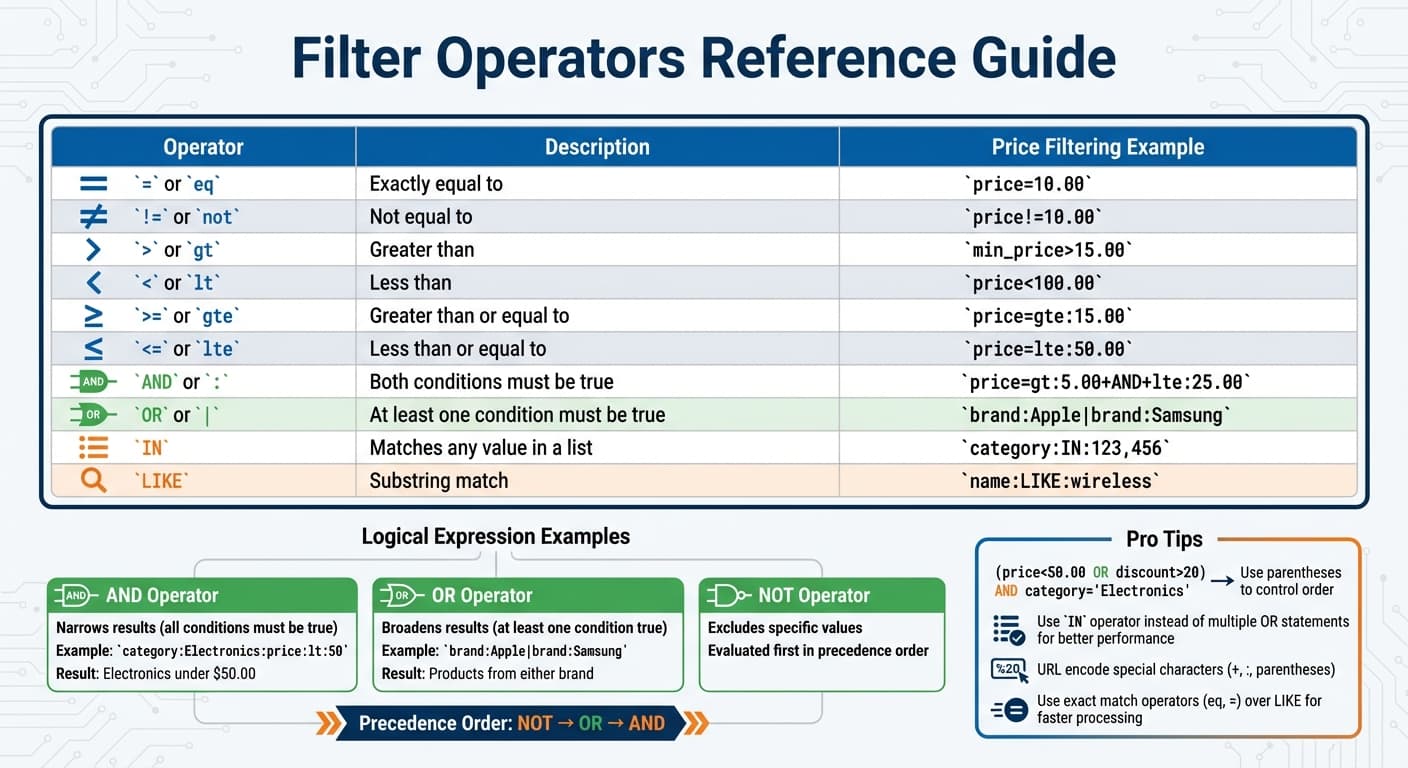
API Filter Operators Quick Reference Guide for Price Data Queries
Once you’ve got the basics of filters down, you can step things up by combining comparison operators with logical expressions. This lets you dig deep into large datasets to pull out exactly the pricing data you need.
Using Operators for Complex Filters
Comparison operators are your go-to for refining searches on numeric fields like price, quantity, or discounts. These are especially handy when working with Currency and Number field types. For instance:
price>15.00will find all items priced above $15.00.price!=10.00excludes items priced exactly at $10.00.
Different APIs might handle these operators differently. Some use symbols like > and <, while others prefer text-based formats like gt (greater than) or lt (less than). For example:
?price:greater=10and?price=gt:10both filter for items priced above $10.00.
Want to set a range? Combine operators like this: price=gt:5.00+AND+lte:25.00 to find items priced between $5.00 and $25.00.
Pro tip: When working with large datasets, stick to exact match operators (eq or =) instead of substring matches (LIKE) to save on processing time. Also, don’t forget to URL encode your filter strings - special characters like +, :, or parentheses can cause errors if not properly encoded.
Once you’ve got the hang of operators, you can combine them with logical expressions to create even more targeted queries.
Logical Expressions for Multi-Criteria Filters
Logical expressions like AND, OR, and NOT allow you to combine multiple conditions into a single query. Here’s how they work:
- AND (sometimes written as
:or&&) narrows your results by requiring all conditions to be true. For example,category:Electronics:price:lt:50filters for electronics priced under $50.00. - OR (often written as
|or||) broadens your search by matching at least one condition. If you’re looking for multiple brands, you could usebrand:Apple|brand:Samsung. - NOT excludes specific values. For instance, you could filter out products from a particular manufacturer.
To manage complex queries, use parentheses to control the order of operations. For example, (price<50.00 OR discount>20) AND category='Electronics' ensures the price or discount conditions are evaluated first before applying the category filter. Most APIs follow this precedence: NOT is evaluated first, then OR, and finally AND. Using parentheses not only makes your queries more readable but also easier to debug.
If you’re filtering for multiple values in the same field, the IN operator is a better choice than chaining multiple OR statements. For example, brand:IN:Apple,Samsung,Sony is faster and cleaner than brand:Apple|brand:Sony|brand:Samsung.
Filter Operators Comparison Table
| Operator | Description | Price Filtering Example |
|---|---|---|
| = or eq | Exactly equal to | price=10.00 |
| != or not | Not equal to | price!=10.00 |
| > or gt | Greater than | min_price>15.00 |
| < or lt | Less than | price<100.00 |
| >= or gte | Greater than or equal to | price=gte:15.00 |
| <= or lte | Less than or equal to | price=lte:50.00 |
| AND or : | Both conditions must be true | price=gt:5.00+AND+lte:25.00 |
| OR or ` | ` | At least one condition must be true |
| IN | Matches any value in a list | category:IN:123,456 |
| LIKE | Substring match | name:LIKE:wireless |
Before diving into complex queries, double-check which operators your API supports. For example, range operators like > work well with numbers and dates, while LIKE is better suited for text-based fields.
Combining Filters with Sorting and Pagination
Once you've mastered advanced filtering, adding sorting and pagination takes your price data extraction to the next level. Filters shrink your dataset, sorting organizes it logically, and pagination breaks it into smaller, easier-to-handle chunks. Together, these tools let you work with large datasets efficiently, avoiding server strain and slow load times. Let’s dive deeper into how sorting and pagination enhance your workflow.
Sorting Filtered Results
After applying filters, sorting helps arrange the data in a way that suits your needs. For price monitoring, this often means sorting prices in ascending or descending order. Many APIs use simple commands like sort=price_asc (low to high) or sort=-price (high to low) to achieve this.
But here’s a catch: when multiple products have the same price, the order can vary between requests. This inconsistency can cause problems with pagination, such as items appearing on multiple pages or being skipped entirely. To avoid this, add a secondary sorting field - like a product ID or SKU. For example, using sort=price_asc,id_asc ensures that products with the same price are always returned in the same order.
Want even more control? Combine multiple attributes in your sorting. For instance, sort=-price,updated_at will show the most expensive items first, prioritizing those recently updated. This is especially useful for tracking real-time price changes.
Pagination for Large Datasets
When dealing with extensive datasets, pagination breaks your results into smaller, more manageable sections. This reduces server load, improves response times, and keeps things running smoothly. Most APIs offer two main types of pagination: offset-based and cursor-based.
Offset-based pagination is straightforward. It uses parameters like limit and offset (or similar terms like startRow and endRow). For example, limit=100&offset=200 retrieves rows 201–300. While this works well for smaller datasets, it becomes less efficient as you go deeper. That’s because the system has to scan and discard all preceding rows for each request.
Cursor-based pagination, on the other hand, avoids this issue. Instead of skipping rows, it uses tokens like paginationToken or after to pick up exactly where the last request left off. This keeps performance steady, no matter how deep you go:
"Offset-based pagination forces the engine to scan and discard rows up to the offset on every request, which becomes increasingly slow as you move deeper in the result set." - Crystallize
For large-scale price monitoring, cursor-based pagination is generally the smarter choice.
However, even with pagination, many e-commerce platforms cap the number of listings you can access - usually between 1,000 and 20,000 per category, even if the catalog contains millions of items. To work around this, use range filters to split the data into smaller chunks. For example, instead of paginating through 50,000 products, create price brackets like $0–$10, $10.01–$20, and so on. This way, each segment stays within the platform’s limits. If you’re targeting higher-priced items, leave the upper limit open (e.g., min_price=1000) to capture everything above your threshold.
Finally, keep your filter and sort parameters consistent across all paginated requests. This ensures the data remains accurate and avoids discrepancies.
Code Examples for Implementing Filters
The examples below illustrate how to use advanced filtering with ShoppingScraper's API for price monitoring. These examples demonstrate how to structure requests and handle responses, making it easy to export data in JSON or CSV format.
curl Example for Filtered Data Requests
Here's how to search Google Shopping for skateboard listings in the US:
curl --request GET \
--url "https://api.shoppingscraper.com/search/googleshopping/us?keyword=Skateboards&page=1&api_key=YOUR_API_KEY"
Key parameters in this request:
- api_key: Your unique authentication key.
- keyword: The search term, in this case, "Skateboards."
- (path): The country code —
us,nl,de,fr,uk, etc. - page: The result page for pagination (default
1).
The response is structured JSON; you can export it to CSV in your own script (see the Python example below). For larger datasets, increment the page parameter to navigate through multiple pages of results.
If you need more flexibility, the Python example below provides enhanced control.
Python Example for API Integration
Using Python, you can fine-tune your data handling and export process. Here's a script that applies filters, retrieves results, and saves them locally:
import csv
import json
import requests

# API Configuration
API_KEY = "YOUR_API_KEY"
COUNTRY = "us"  # nl, de, fr, uk, us, ...
url = f"https://api.shoppingscraper.com/search/googleshopping/{COUNTRY}"

# Query parameters
params = {
    "api_key": API_KEY,
    "keyword": "Skateboards",
    "page": 1,             # Pagination: increment to fetch more pages
}

# Execute Request
response = requests.get(url, params=params)

# Export the structured results as JSON or CSV
if response.status_code == 200:
    data = response.json()

    with open("filtered_prices.json", "w") as f:
        json.dump(data, f, indent=4)
    print("Data exported to filtered_prices.json")

    results = data.get("results", [])
    if results:
        with open("filtered_prices.csv", "w", newline="") as f:
            writer = csv.DictWriter(f, fieldnames=results[0].keys())
            writer.writeheader()
            writer.writerows(results)
        print("Data exported to filtered_prices.csv")
else:
    print(f"Error: {response.status_code}")
This script uses Python's requests library to handle API calls and its built-in tools for saving files. Key points to note:
- Increment the page parameter to paginate through more results.
- Set the country code in the path (e.g.
/search/googleshopping/nl) to localize results to a specific region.
These examples show how to query ShoppingScraper's API and shape the results, whether you're working with a command-line tool like curl or a programming language like Python.
Use Cases for Advanced Price Filtering
Advanced filters transform raw price data into actionable insights, making them indispensable for scenarios requiring precision and speed. Let’s explore how these filters can be applied to sharpen competitive strategies.
Monitoring Tiered Pricing and Discounts
When analyzing tiered pricing, filters can help you zero in on price points across product variants, such as comparing a "12 Count" package to a "Value Pack." These filters allow you to calculate per-unit costs and determine which competitors are excelling in bulk pricing. For instance, filtering by attributes like "bundle", "size", or "count" provides a clear view of unit economics.
Boolean and range filters, such as on_sale:true or sale_discount>=20, are particularly useful for identifying significant markdowns. To understand how tiered pricing impacts market share, you can use filters like buyBoxWinRate or priceCompetitiveness BETWEEN 0 AND 75. Always rely on unique identifiers - SKU, GTIN, or MPN - to ensure accurate comparisons of identical products across merchants and quantities.
Filtering by Custom Product Properties
Custom property filters enable a more tailored analysis. For example, you can filter by specific brands, seller ratings, or eco-friendly flags using precise field syntax. In ShoppingScraper, exact matches (brand:"Apple"), numeric ranges (reviews.rating:>4), or Boolean flags (isInDemand:true) help refine results. Logical expressions, such as categories:laptops AND brand:Apple AND -brand:Dell, let you exclude certain competitors while focusing on your target segment.
Wildcards can also be handy; for example, categories:comput* captures terms like "computer" and "computing." When dealing with special characters (like a 24" monitor), make sure to escape them properly to avoid query errors. For large datasets, cursor-based pagination ensures you can process results in batches without exhausting API credits. These filters allow for precise segmentation, making it easier to conduct targeted product analysis.
Real-Time Price Tracking
Real-time tracking is crucial for keeping up with dynamic markets. With ShoppingScraper, every /offers response returns the live price, sale price, and original price per merchant — so you can spot products currently discounted and uncover temporary promotions. Combine this with your own price-band logic to identify when competitors enter ranges that could impact your positioning.
Because results are scraped live from Google Shopping at request time, the data always reflects what a shopper sees right now. By scheduling lookups hourly on your top products, you can respond swiftly to competitive threats and seize time-sensitive opportunities — always one step ahead in the pricing game.
Conclusion
Advanced filters transform price data APIs into precise tools for gaining competitive insights. By using range filters, logical operators, and real-time parameters, you can pinpoint the exact pricing details you need - whether it’s tracking discounts, monitoring specific product versions, or reacting to competitor changes within hours.
These features deliver clear operational benefits. For example, ShoppingScraper’s automated data collection can replace the workload of 3–4 full-time employees. Alongside scheduled crawls, geotargeting across 40+ country domains, and per-product monitoring frequencies, the platform scales efficiently while turning vast amounts of data into actionable insights — all without wasting API credits.
The secret lies in using filters strategically. Choose the right filter type, pair it with proper sorting and pagination, and design queries that align with your goals. Whether you’re enforcing MAP policies or capturing time-sensitive flash sales, the right configuration ensures you’re working with clean, relevant data.
Keep in mind: Complex filters cost two credits per page instead of one. Start with broader queries and refine them as you identify business-critical insights to balance precision with resource efficiency.
FAQs
How can I find out which filter operators my endpoint supports?
When working with an API, it's crucial to review the documentation for your endpoint to understand which filter operators are available. These operators often vary based on the type of data field you're dealing with - whether it's text, numbers, or dates. Common operators you might encounter include =, !=, >, <, or LIKE. Be sure to check for examples or detailed explanations in the documentation to see how these operators are applied. Always confirm that the operators are compatible with the specific field type you're using to avoid any issues.
Why do my paginated results change between requests?
Paginated results often differ between requests because APIs and websites rely on tools like next_page_token or parameters such as page_size and page_token to break data into smaller, more manageable pieces. These tools ensure that each request fetches a distinct subset of data, which can change depending on the token or parameter values included in the query.
How can I reduce API credit usage when using complex filters?
To make the most of your API credits when working with complex filters, focus on optimizing your requests. Start by using precise filtering conditions with the filters parameter to narrow down the data you retrieve. Sending POST requests with JSON-encoded filters can also help streamline the process and improve efficiency.
Additionally, consider batching your requests to handle multiple operations in one go. Use the fields parameter to request only the specific data you need, reducing the amount of data transferred. These steps can help you save both data transfer costs and API credits.
Related Blog Posts
CTO & Co-founder
Full-stack engineer specializing in web scraping, API design, and AI applications for e-commerce. Built ShoppingScraper's infrastructure processing 1M+ daily product lookups.